Pending Deposits
The Manage Bank Accounts sub-module is a centralized interface for configuring and managing all bank accounts used by HelloMe Money across tenants, currencies, and countries.
It supports both active and inactive accounts and allows designation of a country-level default account. This module is essential for treasury, finance, and system administration teams.
he Manage Pending Deposits sub-module provides treasury and finance teams with centralized control over unapproved or pending remittance deposits submitted by agents or remitters. It plays a crucial role in verifying the legitimacy of deposits before they are credited to system balances or agent ledgers.
🎯 Purpose
- Review and validate deposits before approval.
- Prevent incorrect or fraudulent fund allocations.
- Ensure deposits are backed by proper documentation.
- Provide an audit trail for financial accuracy and compliance.
🔍 Filters and Search Criteria
Operators can use the following filters to locate specific deposits:
| Field | Description |
|---|---|
| Country | Country where the deposit originated |
| Agent | Agent submitting the deposit |
| Branch | Branch associated with the agent |
| Remitter ID | Unique ID of the remitter |
| Reference No. | Bank or system-generated deposit reference |
| Description | Any comments or contextual info tied to the entry |
📋 Deposits Table View
Each row in the deposit list includes the following:
| Column | Description |
|---|---|
| Date | Timestamp when the deposit was submitted |
| Deposited by | Name of remitter or depositor (if available) |
| Reference # | Bank or internal transaction reference |
| Notes | Additional deposit description |
| Payment Method | How the payment was made (e.g., OnlineBank) |
| Bank | Bank through which funds were deposited |
| Amount | Value of the deposit |
| Status | Always shown as Pending until reviewed |
| Action | Buttons to View, Accept, or Reject |
1. Click "Date Deposited by Reference # ..."
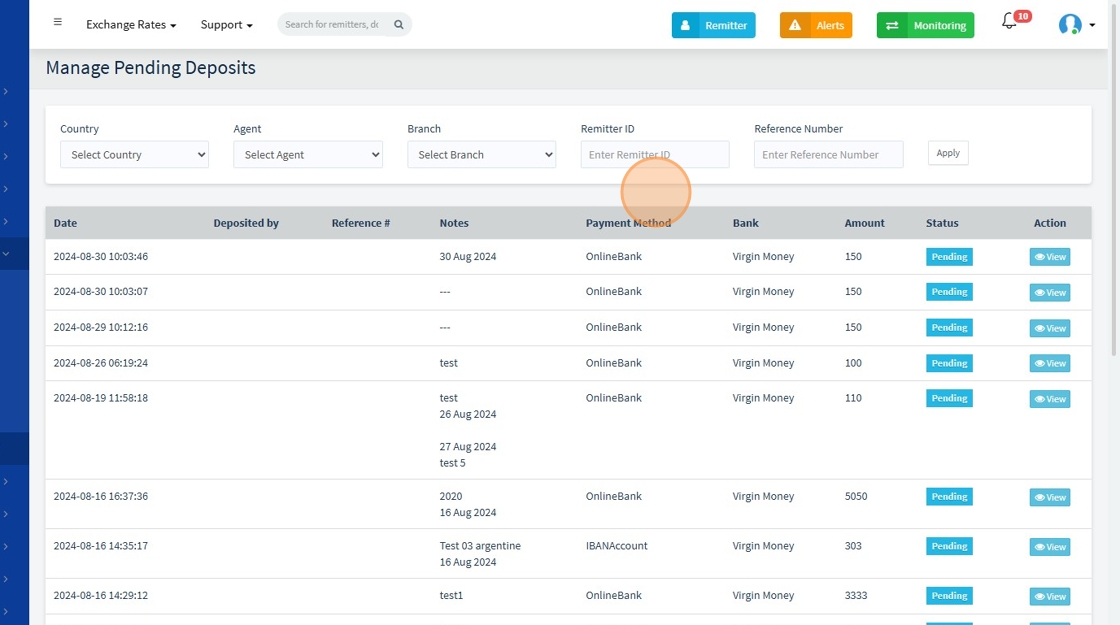
2. Click To see more details about the deposit, click "view" 👁️ icon

To accept the deposit, click the "Accept" button, to reject the deposit, click the "Reject" button